
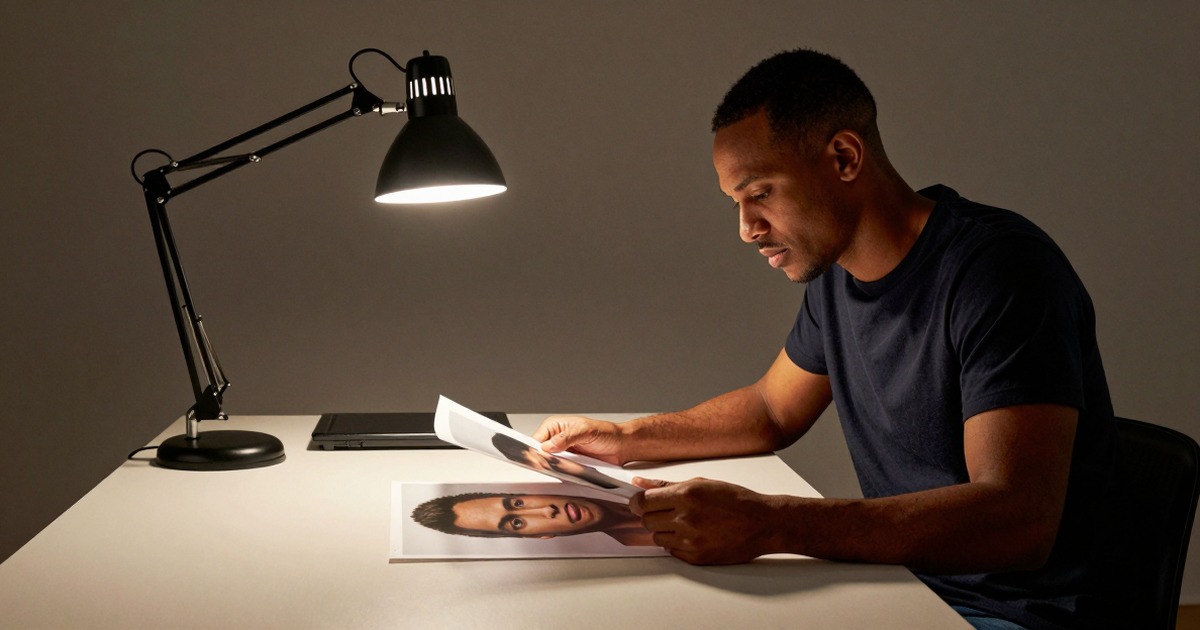
Editing a headshot is where most people go wrong. Not because they lack the technical skill but because they don't know where to stop. The goal of editing a professional headshot is to make the photo look like you on your best day. Not a different person. Not a magazine cover. You, well-lit, well-groomed, on a day when everything went right.
Every edit should pass one test: would a colleague recognize you from this photo? If the answer is no, you've gone too far.
What to Edit
Skin Cleanup
Do: Remove temporary blemishes (pimples, scratches, razor bumps). These aren't permanent features of your face. They happened to be there on photo day.
Don't: Remove moles, birthmarks, or freckles that are consistently part of your appearance. These are identification features. Removing them creates a disconnect between your photo and your face.
Technique: Spot healing or clone stamp on specific blemishes. Work at 100% zoom so you can see exactly what you're changing. Check the result at the display size the image will actually be used at.
Skin Texture
Do: Reduce the appearance of texture in harsh lighting. If the lighting emphasized pores or scarring more than it should, gentle frequency separation or a subtle blur on the texture layer evens things out.
Don't: Smooth skin to poreless perfection. Skin has texture. All skin. Removing it entirely creates the uncanny valley effect that screams "this was edited."
The rule: You should still be able to see skin texture in the final image. If the skin looks like it was rendered in a video game, back off.
Under-Eye Circles
Do: Lighten dark circles to reduce their prominence. Sleep deprivation on photo day shouldn't define your professional image.
Don't: Eliminate them entirely. Some shadowing under the eyes is natural and removing it completely looks unreal.
Technique: Dodge tool or a brightness adjustment layer masked to just the under-eye area. 30-50% reduction, not elimination.
Color Correction
Do: Adjust white balance so skin tones look natural. Fix color casts from mixed lighting (fluorescent green, tungsten orange). Ensure the background is the color it's supposed to be.
Don't: Dramatically shift skin tone from your actual complexion. Don't make yourself tanner, paler, or more saturated than reality.
Background
Do: Clean up any distracting elements. If a solid background has uneven lighting, even it out. Remove any objects or shadows that shouldn't be there.
Don't: Add elaborate fake backgrounds. A plain background is better than a poorly composited one.
Stray Hairs
Do: Remove obviously distracting flyaway hairs that cross your face or break the silhouette of your head against the background.
Don't: Remove every single hair that isn't perfectly in place. Some flyaways look natural. Over-cleaning hair creates a helmet effect.
Eyes
Do: Ensure the whites of the eyes are actually white (not bloodshot or yellow from fatigue). Brighten slightly if lighting left them dull.
Don't: Enlarge eyes, change eye color, or add artificial catchlights. These changes are obvious and cross the line from editing into manipulation.
What Not to Edit
- Face shape. Liquify and reshape tools should not be used on professional headshots.
- Body size. If shoulders or torso are visible, don't slim or reshape them.
- Age. Don't make yourself look younger. Reduce harsh shadows in wrinkles if you want, but don't remove the wrinkles.
- Teeth shape or alignment. Whitening slightly is acceptable. Straightening or resizing is not.
- Hair amount. Don't add hair where there isn't any.
Editing Tools
Professional:
- Adobe Lightroom: Best for global adjustments (exposure, color, contrast)
- Adobe Photoshop: Best for detailed retouching (blemish removal, frequency separation)
- Capture One: Professional alternative to Lightroom
Free/Budget:
- GIMP: Full-featured Photoshop alternative, steep learning curve
- Pixlr: Browser-based, handles basic retouching
- Snapseed: Mobile, surprisingly capable for basic edits
AI-assisted:
- Luminar Neo: AI-powered skin retouching with adjustable intensity
- Narkis.ai: Generates professional headshots with editing already applied
The Professional Standard
Professional retouchers follow an unwritten code: the subject should look like themselves, just optimized. The industry term is "beauty retouching" but the professional headshot version is more conservative than fashion or editorial work.
If you're hiring a retoucher, communicate your expectations clearly:
- "Natural retouching, not beauty retouching"
- "Remove temporary blemishes, keep permanent features"
- "I should look like myself, not a model"
Ask for a proof before final delivery. Retouching preferences are subjective and it's easier to request adjustments before the final export.
For a broader overview of headshot preparation, see our professional headshots guide. For information on when AI headshots handle editing automatically, see our AI headshots guide.
Changelog:
- "(blemish removal, frequency separation)" parenthetical in the FAQ answer restructured as inline text: "like blemish removal or frequency separation" - brings parenthetical count from 4 to 3 (within the limit).
- No other issues found. No em-dashes, semicolons, AI openers, filler phrases, or structural problems. Intro fragment style ("Not a different person. Not a magazine cover.") preserved as intentional author voice.